Publication

Home → Create Website → Content Types → Publication

Publication

As the name suggests, you can add Publications to showcase current publications in an appealing way. But they are also designed for longer editorial content such as curated collections, visual trends, and curatorial insights. Use a View Section to embed your latest Publications into a page. By default, the most recent Publications are listed at the top. The sort order and layout can also be customised. 

You can view Publications live on our demo page

Related content: Learn more about View Section.

Create a Publication

    1. In the Main Administrative Menu, navigate to Content  Add Content  Publication.
    2. Under Overall information, specify Title, Publish Date, Summary and Content.
    3. Optionally, you can also add a cover and additional images under Media.
    4. Under Page settings on the right, you can choose your preferred date format or hide the date.
    5. Publish the page right away with the Content is live (published) toggle or choose a publishing date under Scheduling options.
    6. Click Save.
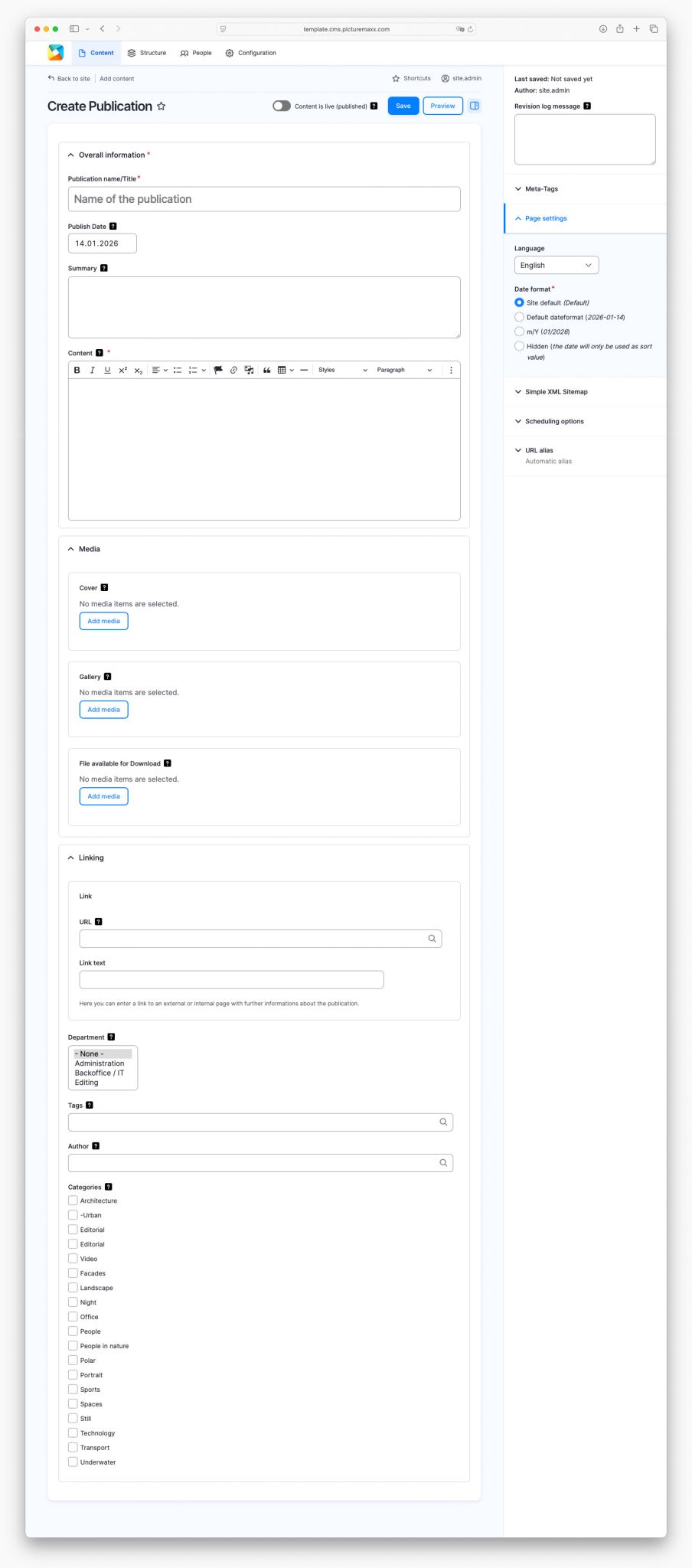
  • A screenshot of showing the setup page of the content type publication in picturemaxx Drupal.


  • Overall information

    Publication name/title
    Enter a title here.

    Publish Date
    Specify when the page goes live. You can also sort the publications overview by publish date. To schedule a future publish date, use  Scheduling options on the right-hand side. 

    Page settings
    Use Page settings on the right to select the language and date format.

    Summary
    Write a brief summary of the publication. This summary will appear as a teaser in the preview, so make sure it accurately reflects the content. 

    Content
    Create the publication here using the Text Editor


    Media

    Cover
    Use the publication’s cover as the preview image. It shall be in portrait format with a 5:7 ratio. Crop the image before uploading for optimal display.

    Gallery
    Add up to 10 images to display them as a gallery under the cover image. 

    File
    Attach one file to the publication for visitors to download. 


    Linking 

    Link
    Enter a link to an external or internal page. To link internal content, start typing its title and select it from the list. 

    Link text
    Enter the text that will display as the link in the publication. 

    Department
    We are currently updating this content type. We will let you know when it's ready. 

    Tags
    Add content-specific tags (optional). You can use tags for filtering and to display content in specific areas on your site.
    NOTE: This is not a SEO tag.

    Author
    Choose the author associated with the publication. 

    Categories
    Choose a predefined category. See Taxonomy for details on using categories. 

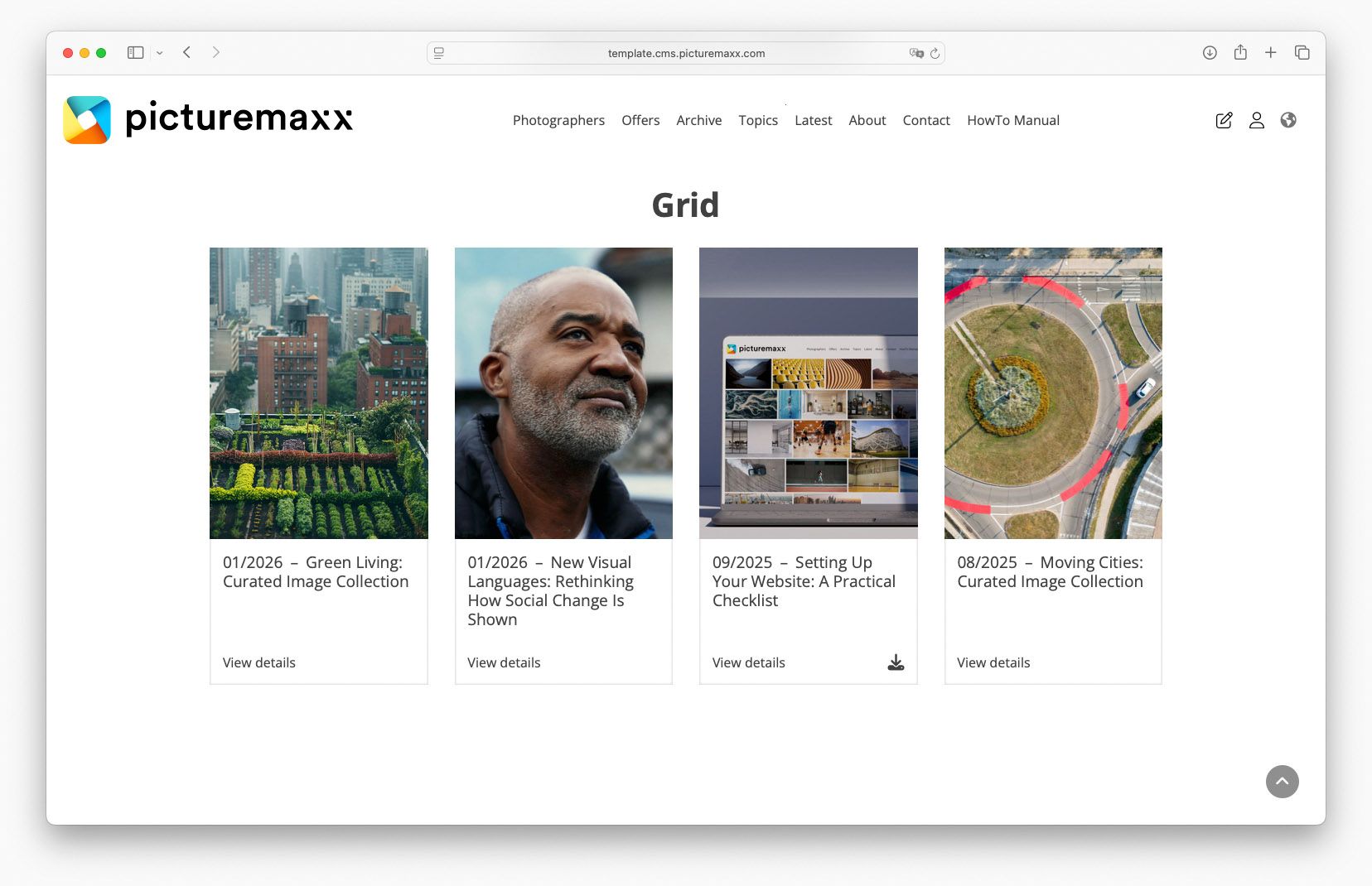
  • Screenshot of the picturemaxx Drupal demo page.
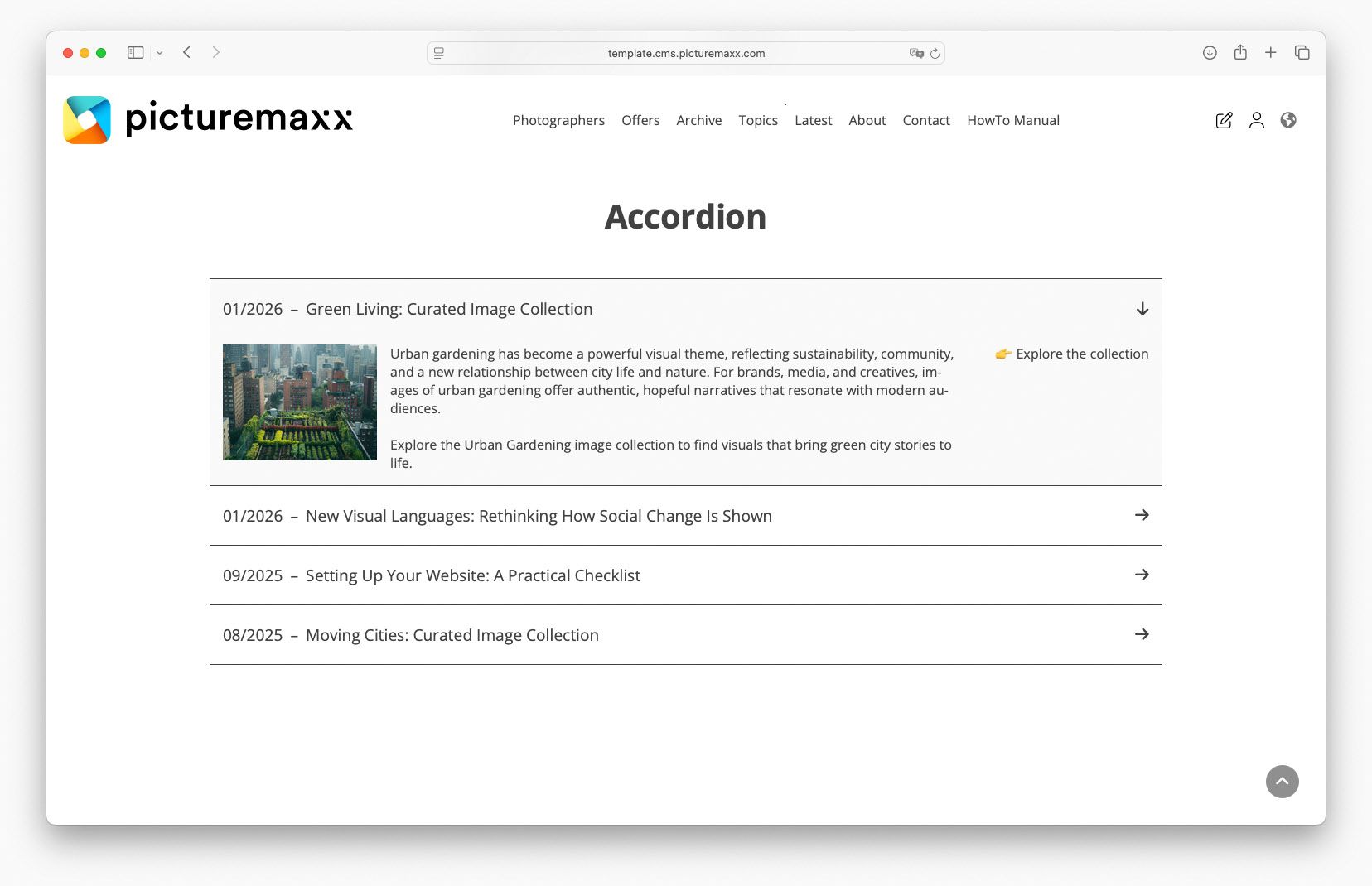
    Screenshot of the picturemaxx Drupal demo page.
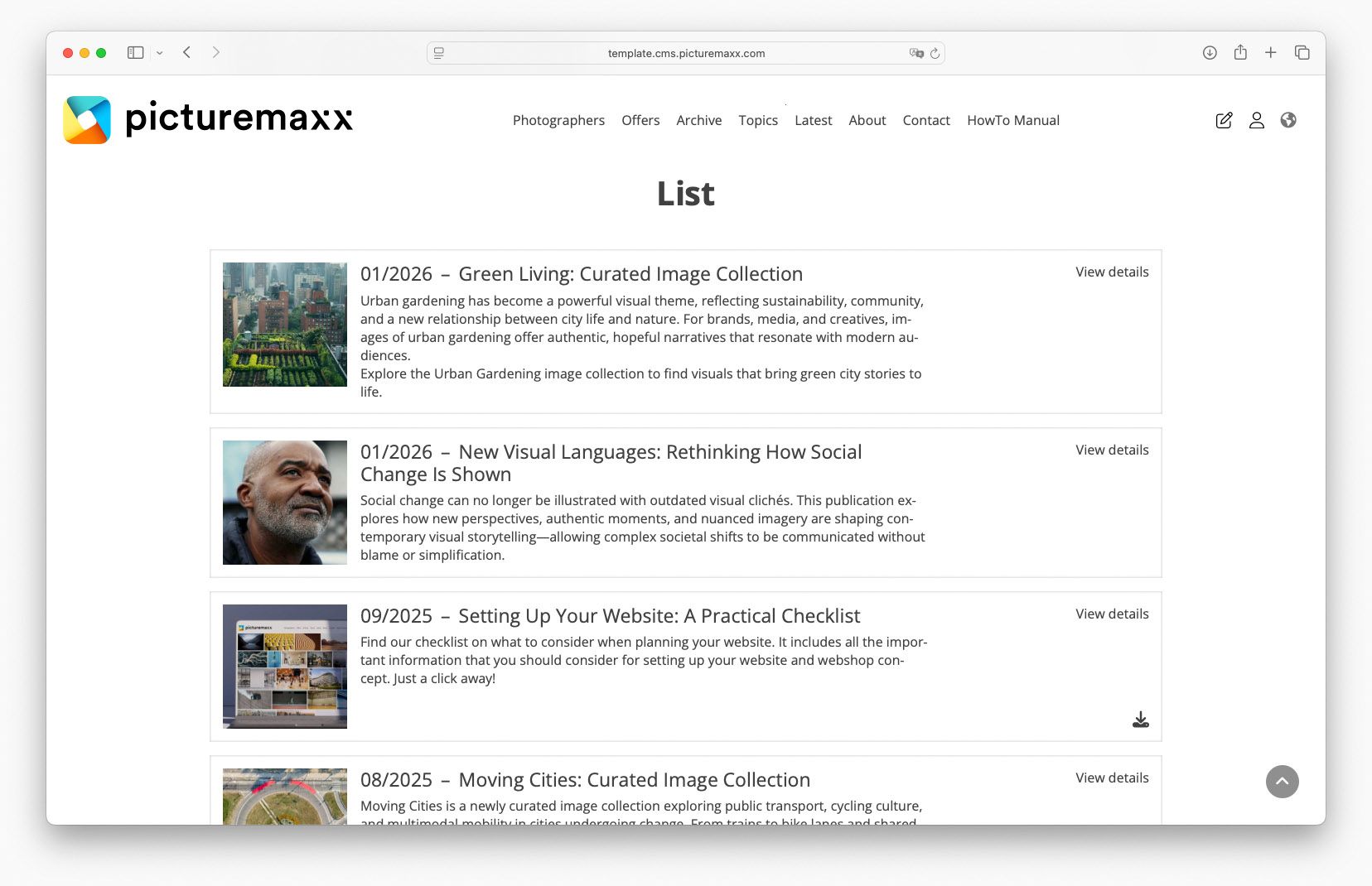
    Screenshot of the picturemaxx Drupal demo page.